O2 Help & Support Centre

Find answers to all your O2 questions with our comprehensive guides and FAQs

Advertisement

SIM Card Activation & Setup Guide

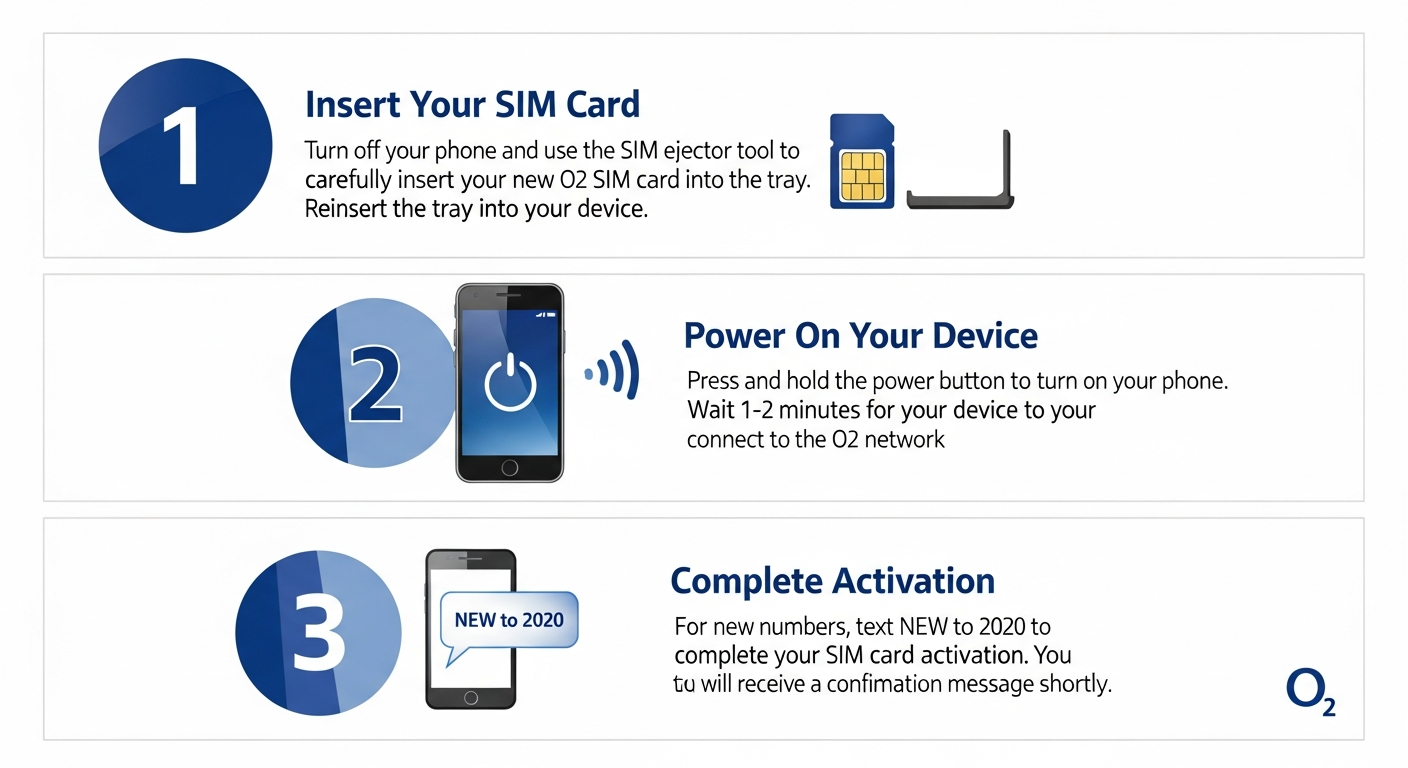
Step-by-step SIM card activation guide showing insert SIM, power on device, activate online, and connection confirmed

How to Activate Your New O2 SIM Card

Activating your O2 SIM card is straightforward and usually takes just a few minutes. Whether you have purchased a pay monthly contract or a pay as you go SIM, follow these steps to get connected:

1

Insert Your SIM Card

Turn off your phone and insert the O2 SIM card into the SIM tray. For newer phones, you may need to use the SIM ejector tool provided with your device.

2

Power On Your Device

Turn your phone back on and wait for it to detect the O2 network. You should see signal bars appear within 1-2 minutes.

3

Complete Activation

For new numbers, text NEW to 2020 or visit o2.co.uk/activate. If you are keeping your old number, activation happens automatically within 24 hours of your PAC transfer.

Top Tip

If your SIM does not activate automatically, try restarting your phone or toggling Airplane Mode on and off. This forces the device to reconnect to the network.

O2 eSIM Setup and Activation

An eSIM (embedded SIM) is a digital SIM that allows you to activate a mobile plan without needing a physical SIM card. O2 offers eSIM support for a wide range of modern smartphones.

Compatible Devices for O2 eSIM

  • Apple iPhone: iPhone XS, XR, 11, 12, 13, 14, 15 series and later
  • Samsung Galaxy: S20, S21, S22, S23, S24 series, Z Fold/Flip models
  • Google Pixel: Pixel 3, 4, 5, 6, 7, 8 series
  • Other devices: Many recent Android phones with eSIM support

How to Get an O2 eSIM

  1. Open the My O2 app on your current device
  2. Navigate to Account then SIM Management
  3. Select Order eSIM and follow the prompts
  4. Scan the QR code on your new device to download the eSIM profile
  5. Alternatively, visit any O2 store for in-person eSIM activation

Benefits of eSIM

With eSIM, you can have two numbers on one phone (great for business and personal use), switch carriers more easily, and there is no risk of losing a physical SIM card when travelling.

Advertisement

O2 Bills, Payments & Account Management

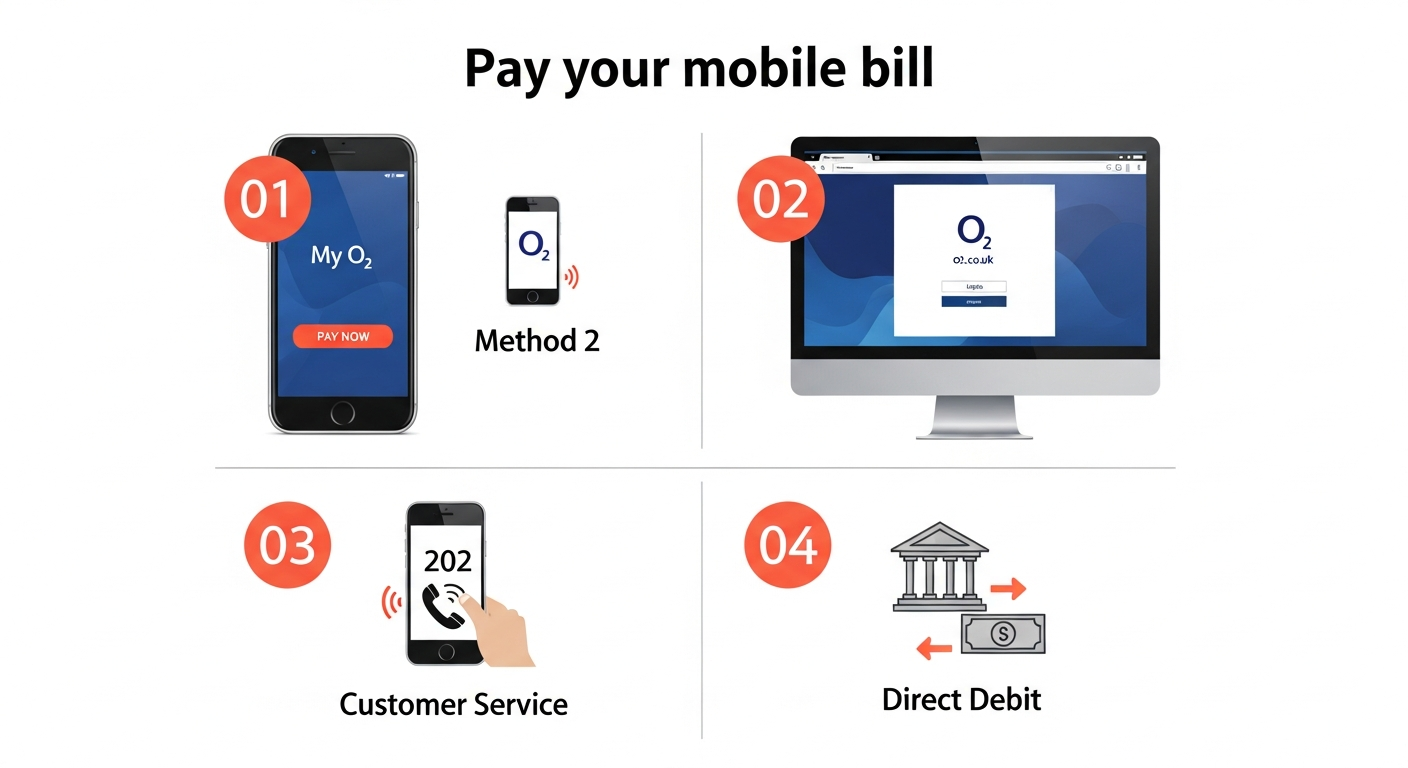
O2 billing and payment methods infographic showing credit card, direct debit, mobile payment, and online portal options

How to Check Your O2 Bill and Usage

Keeping track of your O2 usage helps you avoid unexpected charges and manage your mobile spending effectively. There are several ways to check your bill and data usage:

My O2 App

Download the free My O2 app from the App Store or Google Play. View real-time usage, download bills, and manage your account all in one place.

Text Services

Text DATA to 2020 to check data usage. Text BAL to 2020 for Pay As You Go balance. Both services are free.

Call O2

Dial 4444 free from your O2 mobile or 0344 809 0222 from any other phone to speak with customer service.

Quick Code

Dial *#100# for an instant on-screen display of your remaining balance and allowances.

O2 Payment Methods and Direct Debit Setup

O2 offers flexible payment options to suit your preferences. Setting up Direct Debit is the most convenient way to ensure your bills are paid on time.

Accepted Payment Methods

  • Direct Debit: Automatic monthly payments from your bank account
  • Debit/Credit Card: Pay online through My O2 or the app
  • Bank Transfer: Use the payment details on your bill
  • In-Store: Pay at any O2 store with cash or card
  • PayPal: Available for online payments

Setting Up Direct Debit

  1. Log into My O2 online or through the app
  2. Go to Bills & Payments section
  3. Select Set Up Direct Debit
  4. Enter your bank details (sort code and account number)
  5. Confirm the mandate and your payments will be taken automatically each month

Payment Date Flexibility

O2 allows you to choose your Direct Debit payment date. You can select from the 1st, 8th, 15th, 22nd, or 28th of each month to align with your payday.

O2 Network Coverage & Signal Troubleshooting

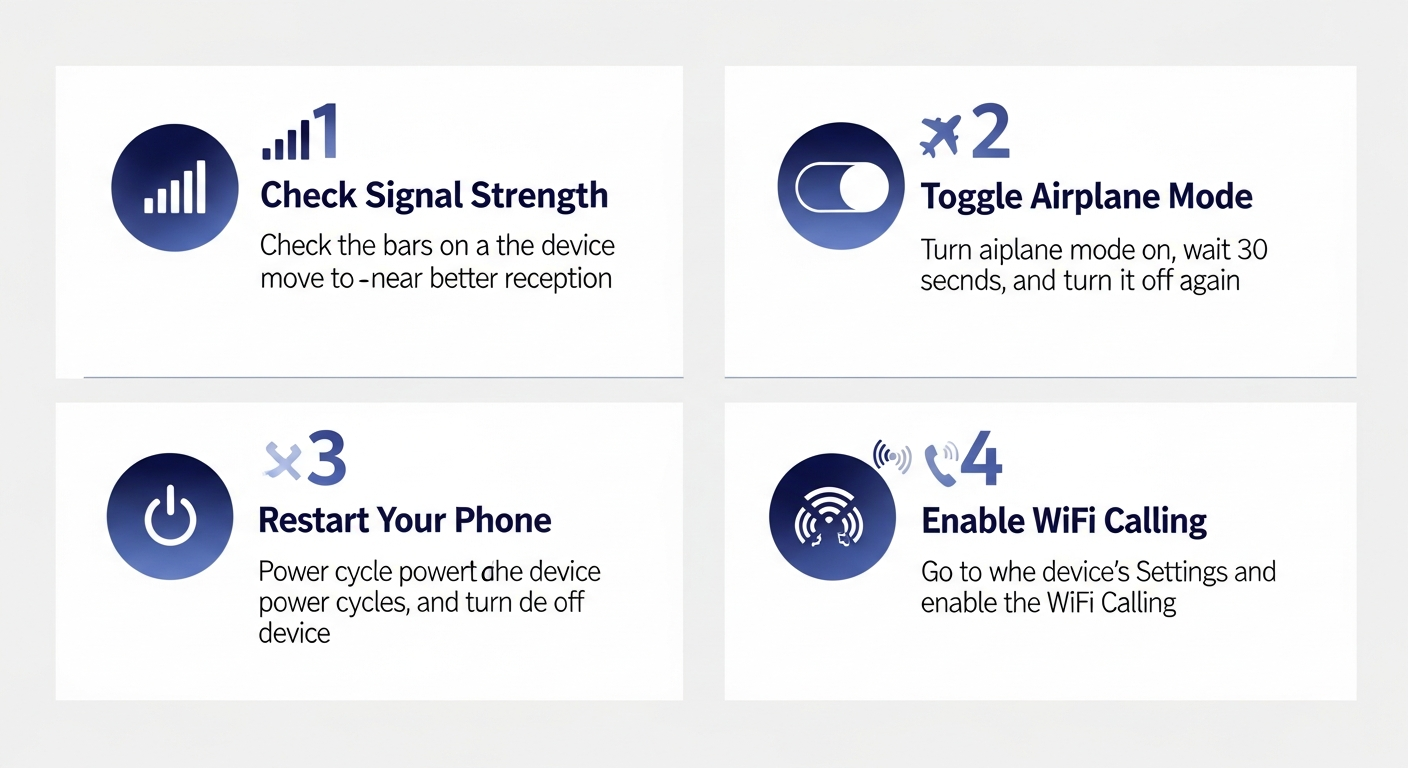
O2 network coverage infographic showing UK coverage map, signal strength indicators, 4G/5G networks, and WiFi calling

Checking O2 Network Coverage in Your Area

Before choosing O2 or if you are experiencing signal issues, it is important to check the network coverage in your area. O2 offers extensive 4G and growing 5G coverage across the UK.

How to Check O2 Coverage

  1. Visit the official O2 coverage checker at o2.co.uk/coveragechecker
  2. Enter your postcode or allow location access
  3. View indoor and outdoor coverage for voice, 4G, and 5G
  4. Check coverage along routes if you travel frequently

O2 Network Statistics (2024)

O2 covers 99% of the UK population with 4G. Their 5G network is expanding rapidly, now available in over 800 towns and cities including London, Manchester, Birmingham, Edinburgh, Cardiff, and Belfast.

Fixing O2 Signal and Network Problems

If you are experiencing poor signal or no service, try these troubleshooting steps before contacting O2 support:

1

Toggle Airplane Mode

Turn Airplane Mode on for 30 seconds, then off again. This forces your phone to reconnect to the nearest cell tower.

2

Restart Your Phone

A simple restart can resolve many network connectivity issues by refreshing the connection to O2 servers.

3

Check for Outages

Visit the O2 Network Status page or check their social media for known issues in your area.

4

Update Network Settings

On iPhone, go to Settings then General then About - if an update is available, you will see a prompt. On Android, check Settings then About Phone then Software Update.

5

Reset Network Settings

As a last resort, reset network settings (this will remove saved WiFi passwords). On iPhone: Settings then General then Reset then Reset Network Settings.

Setting Up O2 WiFi Calling (VoWiFi)

WiFi Calling allows you to make and receive calls over a WiFi connection when mobile signal is weak. This is perfect for basements, rural areas, or buildings with thick walls.

Enable WiFi Calling on iPhone

  1. Go to Settings then Mobile (or Cellular)
  2. Tap WiFi Calling
  3. Toggle WiFi Calling on This iPhone to on
  4. Enter your home address for emergency services
  5. You will see "O2 WiFi" in the status bar when connected

Enable WiFi Calling on Android

  1. Open Settings then Connections
  2. Tap WiFi Calling or search for it
  3. Toggle the feature on
  4. Register your emergency address

WiFi Calling Benefits

Calls made over WiFi are included in your plan allowance and charged at standard rates. There are no extra charges for using WiFi Calling, making it a free way to improve your coverage indoors.
Advertisement

O2 International Roaming Guide

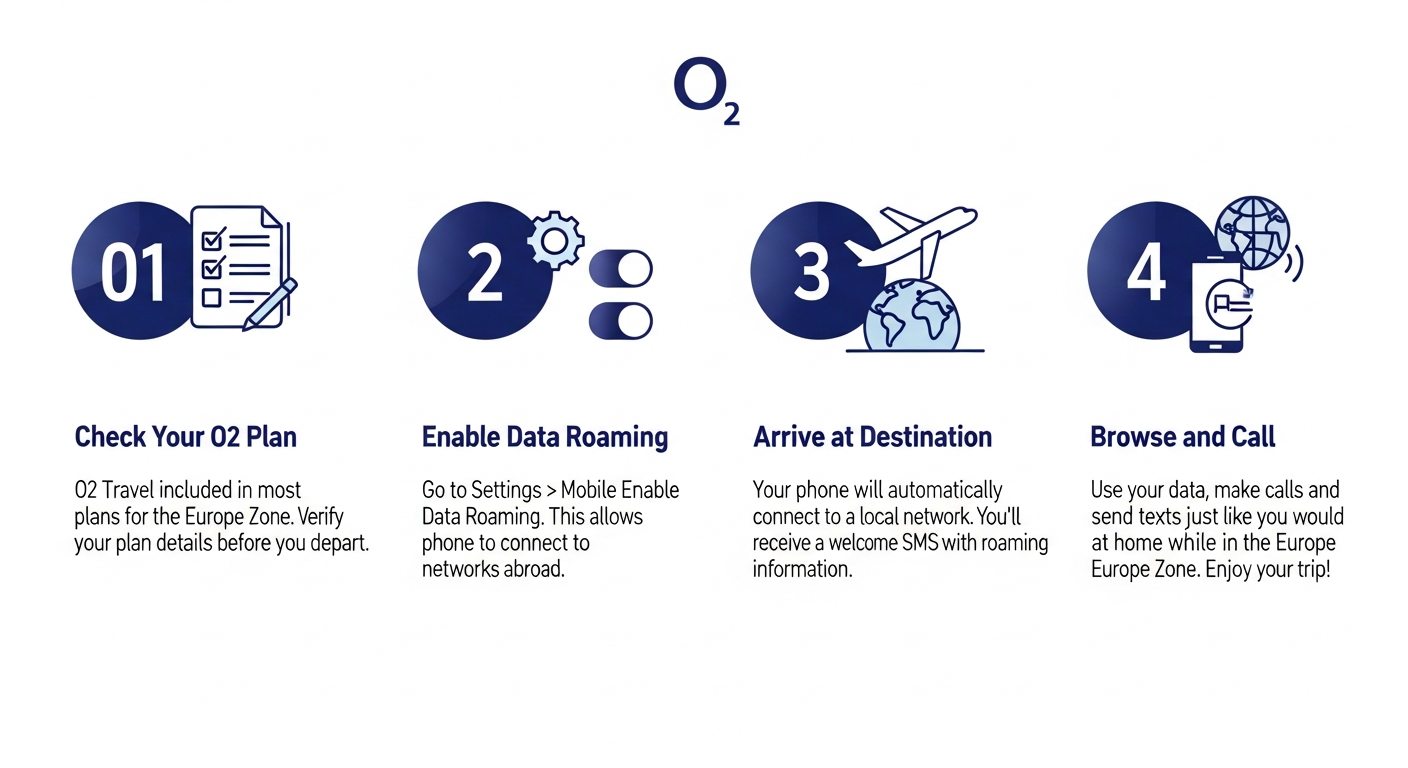
International roaming infographic showing airplane, globe with connections, European destinations, and phone with world map

Using Your O2 Phone Abroad

O2 offers roaming in over 75 destinations with their O2 Travel inclusive roaming feature. Understanding roaming options helps you avoid unexpected charges while staying connected overseas.

O2 Travel Inclusive Destinations

With eligible O2 plans, you can use your UK allowance in Europe Zone countries at no extra cost. This includes:

Popular European Destinations
  • Spain
  • France
  • Germany
  • Italy
  • Portugal
  • Greece
  • Netherlands
  • Ireland
Other Included Countries
  • Austria
  • Belgium
  • Croatia
  • Cyprus
  • Czech Republic
  • Denmark
  • Finland
  • Sweden

Before You Travel Checklist

  1. Check your plan: Confirm your tariff includes O2 Travel or purchase a Travel Bolt On
  2. Enable roaming: In My O2, ensure data roaming is activated on your account
  3. Download content: Save maps, music, and videos offline to reduce data usage
  4. Disable auto-updates: Turn off automatic app updates to prevent unexpected data use
  5. Note O2 abroad numbers: Call O2 from abroad on +44 7860 090202

O2 Roaming Charges Outside Europe

For destinations outside Europe Zone, O2 offers Travel Bolt Ons and daily charging caps to keep costs manageable.

World Traveller Bolt On Options

Bolt On Data Included Calls & Texts Price
O2 Travel Day Pass Use UK allowance Included From £4.99/day
World Travel Week 500MB 50 mins, 50 texts £19.99/week
World Data Pass 1GB Data only £9.99

Avoid Bill Shock

O2 automatically applies a £45 data spend cap when roaming outside inclusive destinations. You will receive a text before reaching this limit. You can adjust this cap in My O2 settings.

Switching to or from O2 - PAC and STAC Codes

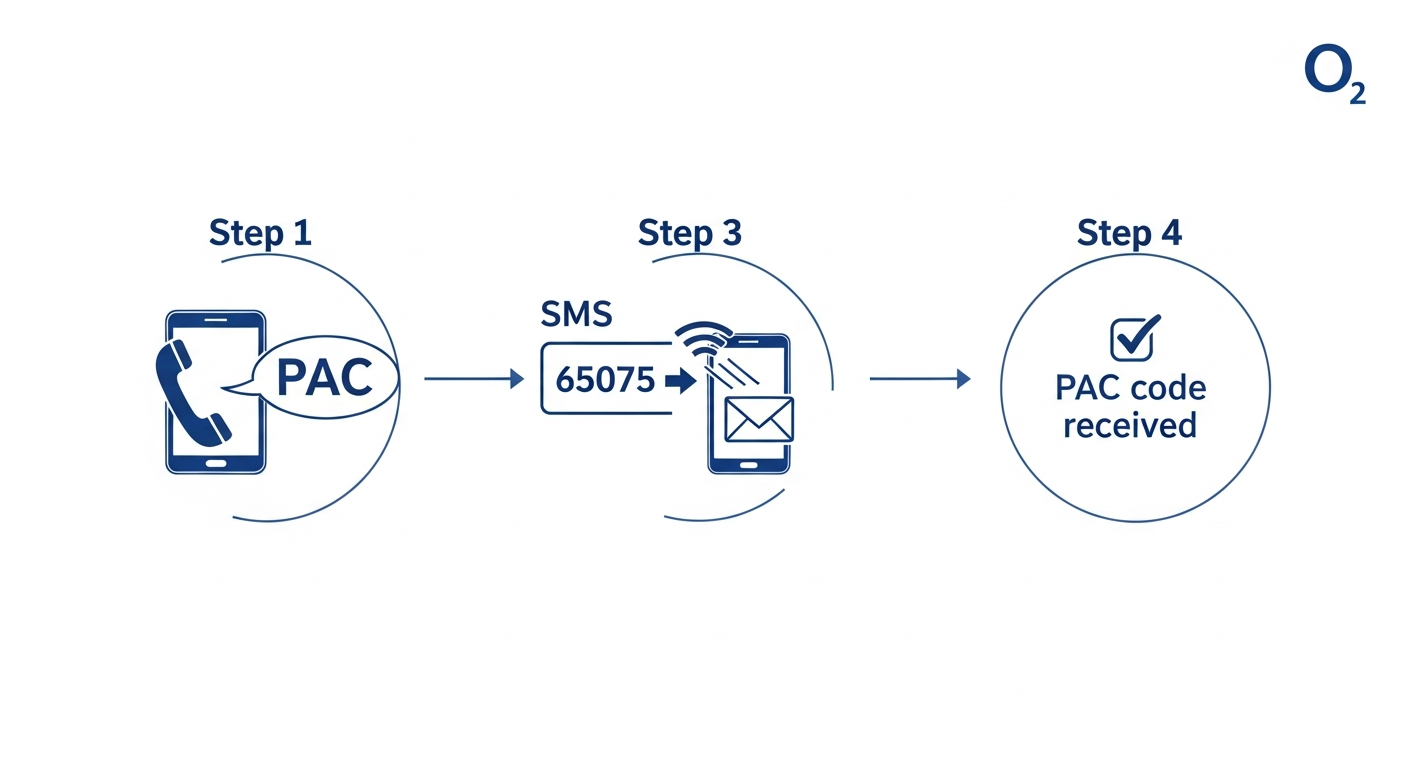
Network switching infographic showing PAC code text message, number porting process, and successful transfer confirmation

How to Get Your O2 PAC Code

A PAC (Porting Authorisation Code) allows you to keep your existing phone number when switching to a different mobile network. By UK law, all networks must provide PAC codes free of charge.

Getting Your O2 PAC Code

Fastest Method: Text

Text PAC to 65075 from your O2 phone. You will receive your PAC code via SMS within 60 seconds.

Call O2

Dial 202 from your O2 mobile or 0344 809 0202 from any other phone. The automated system will text you the code.

Online

Log into My O2 and navigate to Account then Manage PAC Code.

PAC Code Facts

  • PAC codes are valid for 30 days
  • Your number transfers within 1 working day after giving PAC to new network
  • Getting a PAC does NOT automatically cancel your contract
  • Early termination charges may apply if you are still within minimum term

O2 STAC Code - Leaving Without Keeping Your Number

If you want to switch networks but do not need to keep your current phone number, request a STAC (Service Termination Authorisation Code) instead.

Getting Your O2 STAC Code

Text STAC to 75075 from your O2 phone. Your STAC code will be sent via SMS and is valid for 30 days.

Feature PAC Code STAC Code
Keep phone number Yes No
Text to request PAC to 65075 STAC to 75075
Validity 30 days 30 days
Best for Switching networks Ending contract only

Joining O2 and Keeping Your Number

Switching to O2 is easy. Here is how to bring your existing number with you:

  1. Request a PAC code from your current network (text PAC to 65075)
  2. Choose your O2 plan and order your new SIM or phone
  3. When your O2 SIM arrives, give O2 your PAC code via My O2 app or by calling 202
  4. Your number will transfer within 1 working day
  5. Your old network contract automatically ends when the port completes

Best Time to Switch

Request your port in the morning for same-day transfer. Ports requested after 3pm may complete the next working day. Your old SIM stops working the moment your number moves to O2.

Advertisement

O2 Phone Upgrades & New Device Setup

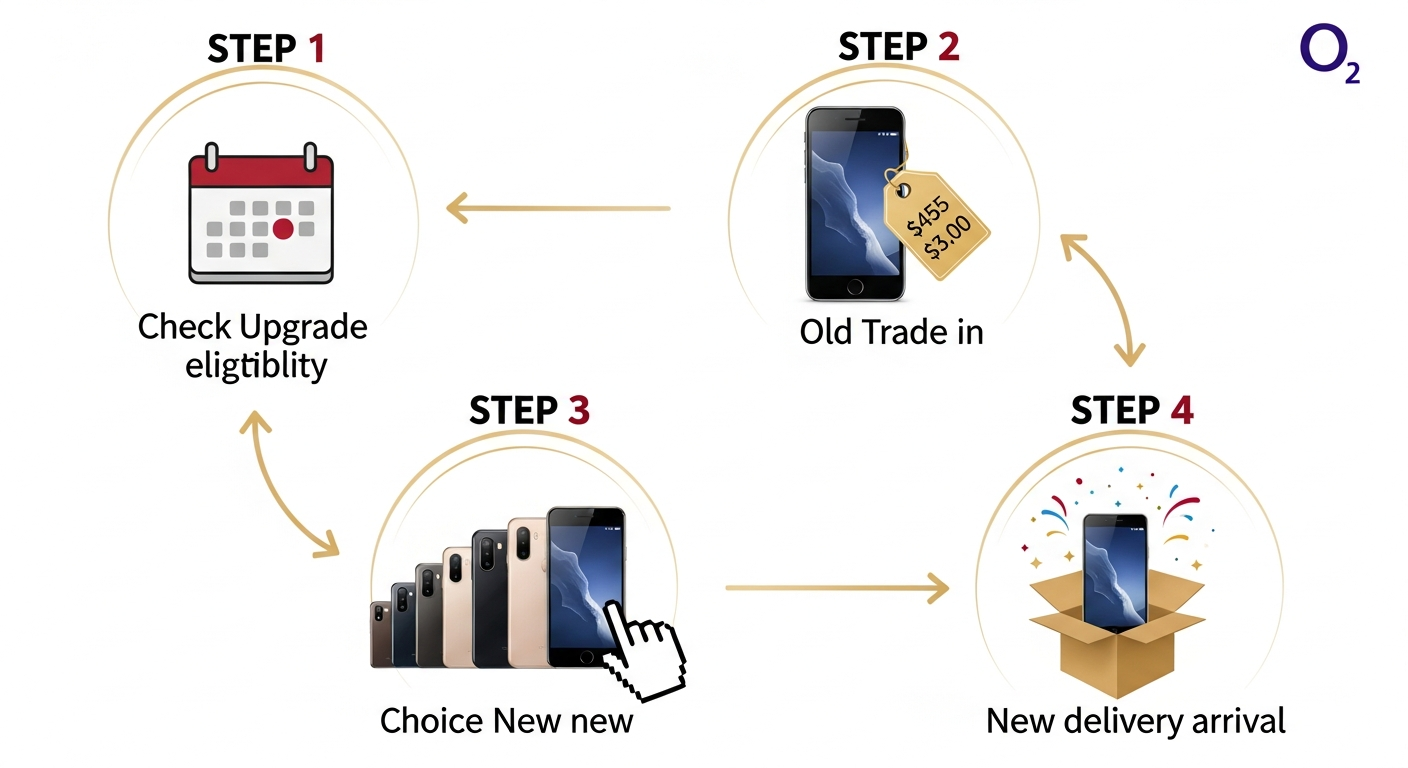
Phone upgrade infographic showing old phone to new phone transition, trade-in value, and upgrade cycle

Checking Your O2 Upgrade Eligibility

O2 customers can typically upgrade their phone before their contract ends. Here is how to check when you are eligible for an upgrade:

Ways to Check Upgrade Eligibility

  1. My O2 App: Open the app, tap Account, then View Upgrade Options
  2. Online: Log into My O2 and check your upgrade status
  3. In Store: Visit any O2 store with your phone and ID
  4. Call: Dial 202 from your O2 phone for upgrade information

O2 Early Upgrade Options

If you cannot wait for your standard upgrade date, O2 offers several options:

  • Pay off remaining balance: Settle your device plan early and upgrade immediately
  • O2 Open: Upgrade anytime after 6 months by returning your current device in good condition
  • Trade-in: Get credit for your current phone towards a new device

O2 Phone Trade-In Program

Trading in your old phone is an excellent way to reduce the cost of your upgrade. O2 accepts a wide range of devices including those from other networks.

How O2 Trade-In Works

  1. Get a quote online at O2 Recycle or in-store
  2. Confirm the offer and receive a prepaid envelope or hand over in-store
  3. Once your device is received and checked, credit is applied
  4. Use the credit towards your new phone or receive as payment

Maximising Your Trade-In Value

  • Remove screen protectors and cases before assessment
  • Factory reset your device and remove accounts
  • Include original charger and accessories if possible
  • Devices in better condition receive higher valuations
  • Check multiple trade-in services to compare offers

Setting Up Your New O2 Phone

Got a new phone from O2? Follow these steps to get everything set up and transfer your data:

iPhone Setup Guide

  1. Turn on your new iPhone and select your language
  2. Connect to WiFi for faster setup
  3. Use Quick Start by placing your old iPhone nearby to automatically transfer settings
  4. Sign in with your Apple ID to restore apps and data from iCloud
  5. Insert your O2 SIM or download eSIM profile
  6. Complete Face ID or Touch ID setup

Android Setup Guide

  1. Insert your O2 SIM card and power on the device
  2. Select language and connect to WiFi
  3. Sign in with your Google account
  4. Choose to restore from backup or set up as new
  5. Use Smart Switch (Samsung) or manufacturer app for data transfer
  6. Set up fingerprint or face unlock

Data Transfer Tips

For the smoothest transfer, charge both phones to at least 50%, connect to WiFi rather than mobile data, and keep both phones close together during the process. Large transfers may take several hours.

O2 Voicemail Setup and Management

Setting Up O2 Voicemail

O2 Voicemail allows callers to leave messages when you cannot answer. Setting it up takes just a few minutes:

Initial Voicemail Setup

  1. Call 901 from your O2 mobile (or 0344 809 0901 from another phone)
  2. Follow the voice prompts to create a 4-digit PIN
  3. Record your personal greeting or use the default
  4. Your voicemail is now active and ready to receive messages

Checking Your Voicemail

  • From your O2 phone: Call 901 (free)
  • From another phone: Call 0344 809 0901 (standard rate)
  • Visual Voicemail: Available on iPhone - see messages listed in the Phone app

Voicemail Settings You Can Change

  • Number of rings before voicemail answers (default is 5)
  • Your personal greeting message
  • PIN for remote access
  • Email notifications for new messages

Lost or Stolen O2 Phone - What to Do

Immediate Steps If Your Phone Is Lost or Stolen

If your O2 phone has been lost or stolen, act quickly to protect your account and data:

1

Try to Locate Your Phone

Use Find My iPhone (Apple) or Find My Device (Google) to locate, lock, or erase your phone remotely. Log in at icloud.com/find or google.com/android/find.

2

Block Your O2 SIM

Call 0344 809 0202 immediately (or +44 7860 090202 from abroad) to suspend your SIM and prevent unauthorised usage and charges.

3

Report to Police

If stolen, report to the police and obtain a crime reference number. This may be needed for insurance claims.

4

Block the Handset (IMEI)

Ask O2 to block your phone's IMEI number. This prevents the device from being used on any UK network, even with a different SIM.

5

Get a Replacement SIM

Order a free replacement SIM from O2 online or collect one from any O2 store with valid ID. Your number will be transferred to the new SIM.

Find Your IMEI Number

Your IMEI (device serial number) can be found on your original box, in your My O2 account, or by dialling *#06# on your phone. Keep a record of this number in a safe place.

Contacting O2 Customer Support

O2 Customer Service Phone Numbers

General Enquiries

202

Free from O2 mobiles

0344 809 0202 from other phones

Pay As You Go

4444

Free from O2 mobiles

0344 809 0222 from other phones

From Abroad

+44 7860 090202

Standard roaming rates apply

Accessibility Team

0800 917 4748

Free - support for disabilities

Other Ways to Get Help

  • O2 Community: Get answers from other O2 customers at community.o2.co.uk
  • Social Media: Tweet @O2 or message on Facebook for support
  • Live Chat: Available through the My O2 app
  • In Store: Find your nearest O2 store for face-to-face help

O2 Customer Service Hours

Phone support is available:

  • Monday to Friday: 8am to 9pm
  • Saturday: 8am to 8pm
  • Sunday: 8am to 6pm
  • Bank Holidays: Reduced hours - check O2 website

Need In-Person Help?

Our friendly staff at O2 stores across the UK are ready to help with any questions, from setting up your new phone to troubleshooting issues.

Find Your Nearest O2 Store
Advertisement